Purpose
This guide provides step-by-step instructions to help you access your content using a mobile browser.
It outlines the steps to access a member’s:
Profile
Content library
Courses
Challenges
Events
Social wall
Accessing Your Account and Dashboard
Log In: Go to https://wisdome.site/dashboard to log in. Your main platform dashboard will open automatically.
View Platform Updates: Scroll down to the Support Platform News section to read welcome notes, announcements, and community updates.
Use Quick Shortcuts: Under Your areas, tap any icon (Library, Courses, Challenges, Events, Social Wall, or Favourites) to go straight to that page.
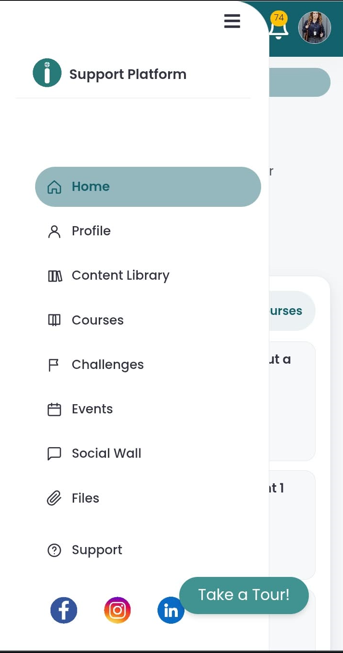
Open the Main Menu: Tap the hamburger menu (three horizontal lines) in the top-left corner to view all navigation links.
Accessing and Managing Your Profile
View or update your personal account details, membership status, and billing history:
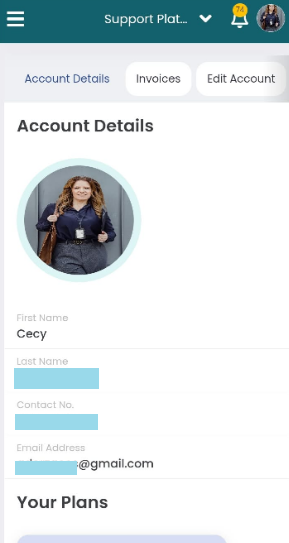
Go to Profile: Tap the top-left menu icon and select Profile.
Review Account Details: Under Account Details, view your profile picture, name, contact number, and email address.
View Invoices: Tap the Invoices tab at the top of the page to check your billing history and receipts.
Edit Account Details: Tap the Edit Account tab at the top of the page to update your personal details and account settings.
View Active Plans: Scroll to Your Plans to check active memberships, plan status, and your join date.
Navigating the Content Library
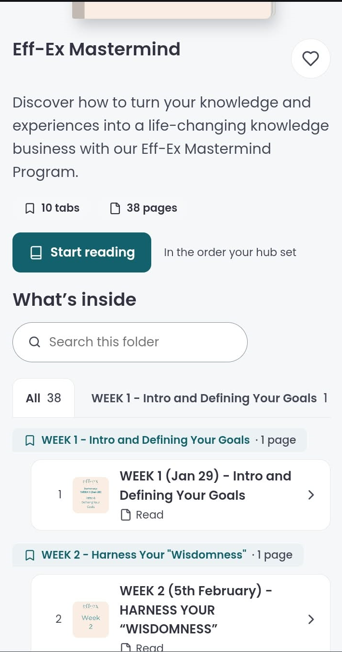
The content library houses structured resource folders, guides, videos, and downloadable materials.
Open the Library: Select Content Library from either the quick-access buttons on your home dashboard or the slide-out main menu.
Search Content: Use the "Search folders, tabs and pages" search bar to quickly locate specific files or topics.
Switch Display View: Switch between Shelf and List views using the toggle buttons to change how folders are displayed.
Explore Folders: Browse through available folders to access specific tabs, pages, and program documentation.
Accessing Courses
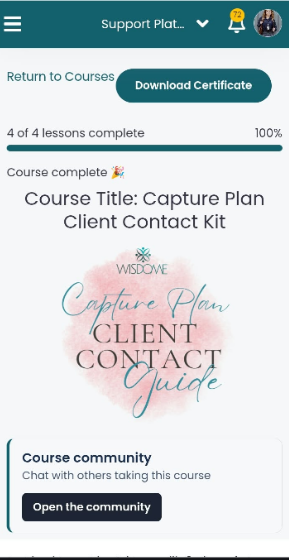
The Courses section allows you to track and resume your learning modules.
Open Courses: Tap Courses from the home dashboard shortcut buttons or the main navigation menu.
Search for a Course: Use the "Search your course" bar at the top to filter available training modules.
Continue Learning: View your enrolled programs. Tap Resume or select a course card to continue with your lessons.
Accessing Challenges
Challenges provide interactive, goal-oriented programs to help you apply your knowledge and engage with the community.
Open Challenges: Tap the Challenges button from the "Your areas" grid on your dashboard or select it from the main navigation menu.
Participate: Browse through active community challenges to track milestones, complete tasks, and collaborate with fellow members.
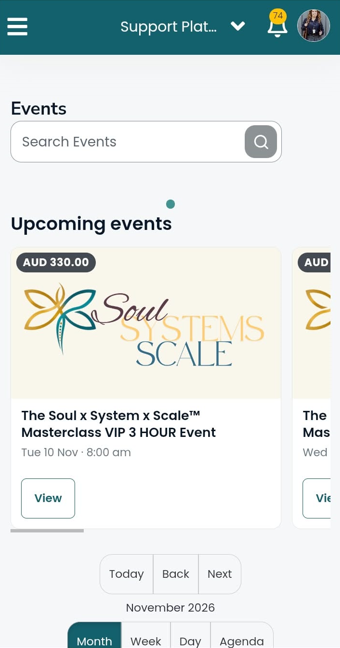
Accessing Events
The events section keeps you informed about upcoming live sessions, webinars, and community get-togethers.
Open Events: Select Events from the home dashboard shortcut buttons or open the slide-out menu to tap Events.
View Schedule: Check upcoming calendar dates, registration details, and joining links for scheduled community masterclasses and calls.
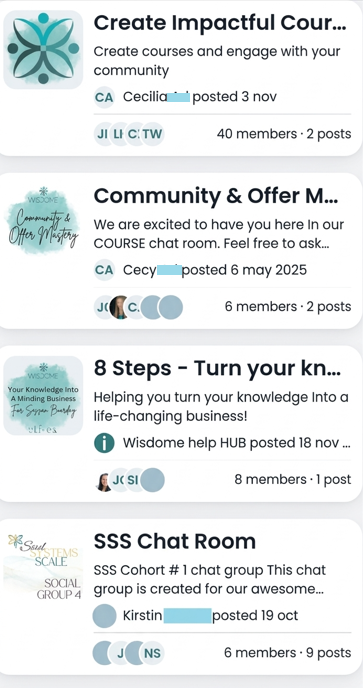
Navigating the Social Wall and Chat Rooms
The Social Wall and chat rooms provide a space for community interactions, discussions, and networking.
Open the Social Wall: Tap Social Wall from your dashboard shortcuts or main menu.
Explore Community Discussions: Scroll through active group feeds and chat rooms.
Engage: Read posts shared by community members, share your thoughts, or leave comments.